In today’s digital age, screen recording has become an essential tool for various purposes—from creating video tutorials, capturing live streaming sessions, recording online meetings, to making gameplay videos for YouTube. With so many screen recording tools on the market, finding one that combines ease of use, high performance, and reliability can be challenging. One such software that has been gaining attention is iTop Screen Recorder. But what exactly is iTop Screen Recorder, and how does it work?
In this article, we’ll take a closer look at iTop Screen Recorder, explore its features, and explain how it works for both beginners and professionals.
What is an iTop Screen Recorder?
iTop Screen Recorder is a free, user-friendly screen recording software developed by iTop Inc. It is designed to allow Windows users to record their screens effortlessly in high quality. Whether you’re recording a presentation, a video call, gameplay, or a tutorial, iTop Screen Recorder offers a range of features that make the process simple and smooth.
Available for Windows 7, 8, 10, and 11, iTop Screen Recorder supports HD video recording with no watermark (even in the free version), customizable recording settings, and built-in video editing tools. It’s built to meet the needs of casual users, educators, gamers, and professionals alike.
Key Features of iTop Screen Recorder
What sets iTop Screen Recorder apart from other screen recording tools is its impressive set of features. Here are some of the most notable:
1. Flexible Screen Recording
iTop Screen Recorder allows you to record the entire screen, a specific window, or a selected region. This flexibility makes it ideal for different use cases, whether you’re capturing a single browser window or your full desktop.
2. High-Quality Video and Audio
The software supports up to 4K resolution, ensuring that your recordings are sharp and clear. It also records audio from your system, microphone, or both, which is especially useful for creating voiceovers or commentaries.
3. No Lag Screen Recording
Thanks to its hardware acceleration technology, iTop minimizes system load and ensures smooth, lag-free recording. This is particularly important for gamers and those running resource-heavy applications during recording.
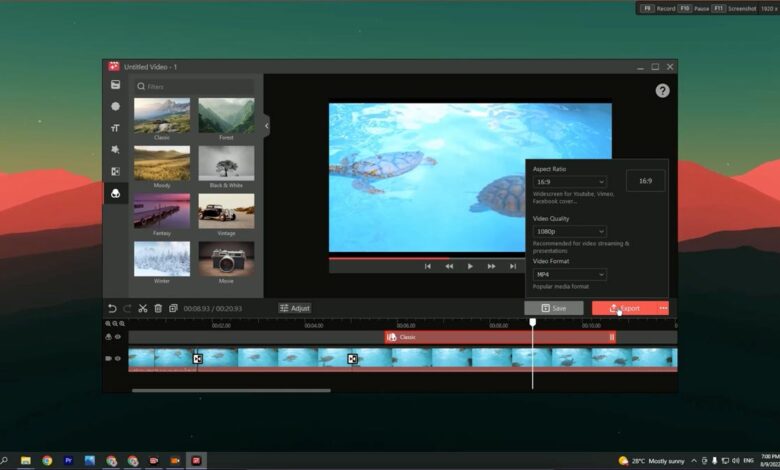
4. Built-in Video Editor
After recording, you can quickly trim, cut, or add music and filters using the built-in video editor. This saves time, as you don’t need to export the file to a separate editing tool.
5. Scheduled Recording
You can set a timer to automatically start and stop recording at specific times. This feature is helpful if you want to record a webinar, online class, or live stream without being at your computer.
6. Multiple Output Formats
iTop supports multiple video formats including MP4, AVI, FLV, MKV, MOV, and GIF. This ensures compatibility with various platforms and devices.
7. No Watermark Option
Unlike many free screen recorders, iTop gives you the option to record videos without a watermark—even in the free version. However, some advanced features are unlocked in the Pro version.
How Does an iTop Screen Recorder Work?
Using screen recorder is straightforward, even if you’ve never used screen recording software before. Here’s a quick breakdown of how it works:
Download and Install
You can download iTop Screen Recorder from the official website (https://recorder.itopvpn.com/). The installation process is quick and easy, with no unnecessary bloatware included.
Launch the Application
Once installed, open the application. You’ll be greeted with a simple and intuitive user interface. The main dashboard includes options to choose your recording area, audio input, webcam (if you want to include facecam), and recording quality settings.
Customize Settings
Before you start recording, you can configure various settings:
- Choose the recording area (Full Screen, Select Region, or Window)
- Enable or disable system/microphone audio
- Enable webcam overlay if you’re doing tutorials or presentations
- Set frame rate, resolution, and output format
Start Recording
Click the “REC” button to start recording. You can use hotkeys to pause, resume, or stop the recording. The default hotkey to stop recording is F9, but you can customize it.
Edit and Export
After you stop the recording, the video will appear in your file list within the software. From there, you can preview, edit, or directly export your video in your preferred format.
Who Should Use an iTop Screen Recorder?
iTop Screen Recorder is suitable for a wide range of users:
- Students and Educators: Perfect for recording lectures, presentations, and study materials.
- Content Creators: Ideal for YouTubers, vloggers, and gamers who want to share high-quality video content.
- Remote Workers: Great for recording Zoom calls, online meetings, and training sessions.
- Gamers: Thanks to its lag-free recording and high frame rate support, it’s a solid choice for recording gameplay.
- General Users: Anyone who needs a reliable, free screen recorder with easy-to-use features.
Is the iTop Screen Recorder Free?
Yes, iTop Screen Recorder offers a free version with generous features, including HD recording, no watermark, and basic editing tools. However, there’s also a Pro version, which unlocks additional benefits like advanced editing, scheduled recording, and technical support.
The Pro version is reasonably priced, making it a good investment for users who need more robust recording capabilities.
Final Thoughts
In a world where video content is king, having a dependable screen recorder is a must. iTop Screen Recorder strikes a great balance between functionality, quality, and ease of use. Whether you’re a beginner just getting started with screen recording or a pro who needs a reliable tool for daily use, iTop has something to offer.
Its intuitive interface, flexible features, and high-performance output make it one of the better free screen recorders on the market today.